Changing a robot voice usually comes down to where the voice is being generated (on the robot, in a companion app, or in a cloud AI service) and which settings that system exposes. Below is a practical, device-agnostic guide you can use for home robots, AI companions, and voice-enabled interactive devices.
1) First, identify what “robot voice” means in your setup
“Robot voice” can refer to a few different things:
- Voice selection (TTS voice): The robot is reading text using a built-in text-to-speech engine.
- Voice effects (voice changer): Your voice (or a model voice) is being filtered—pitch-shifted, formants changed, etc.
- Audio quality issues: The voice is supposed to sound natural, but it comes out tinny, choppy, or monotone due to codec, speaker, or connection problems.
Before you tweak anything, answer these two questions:
- Where is the voice produced? (Robot firmware, phone app, PC software, or cloud.)
- Is the issue “wrong voice” or “bad sound”? (Selection vs. quality.)
2) Change the voice in the most common places
A) On-robot settings (built-in menu)
If your robot has a screen or physical controls:
- Open Settings → Audio / Voice / Speech.
- Look for options like Voice, Voice pack, Language, Accent, or Narrator.
- Test changes using the robot’s “Preview” or “Test phrase” button (if available).
Tip: Some robots require downloading voice packs first (over Wi‑Fi) before they appear in the list.
B) Companion app settings (phone/tablet)
Many robots store voice settings in their app profile rather than on-device.
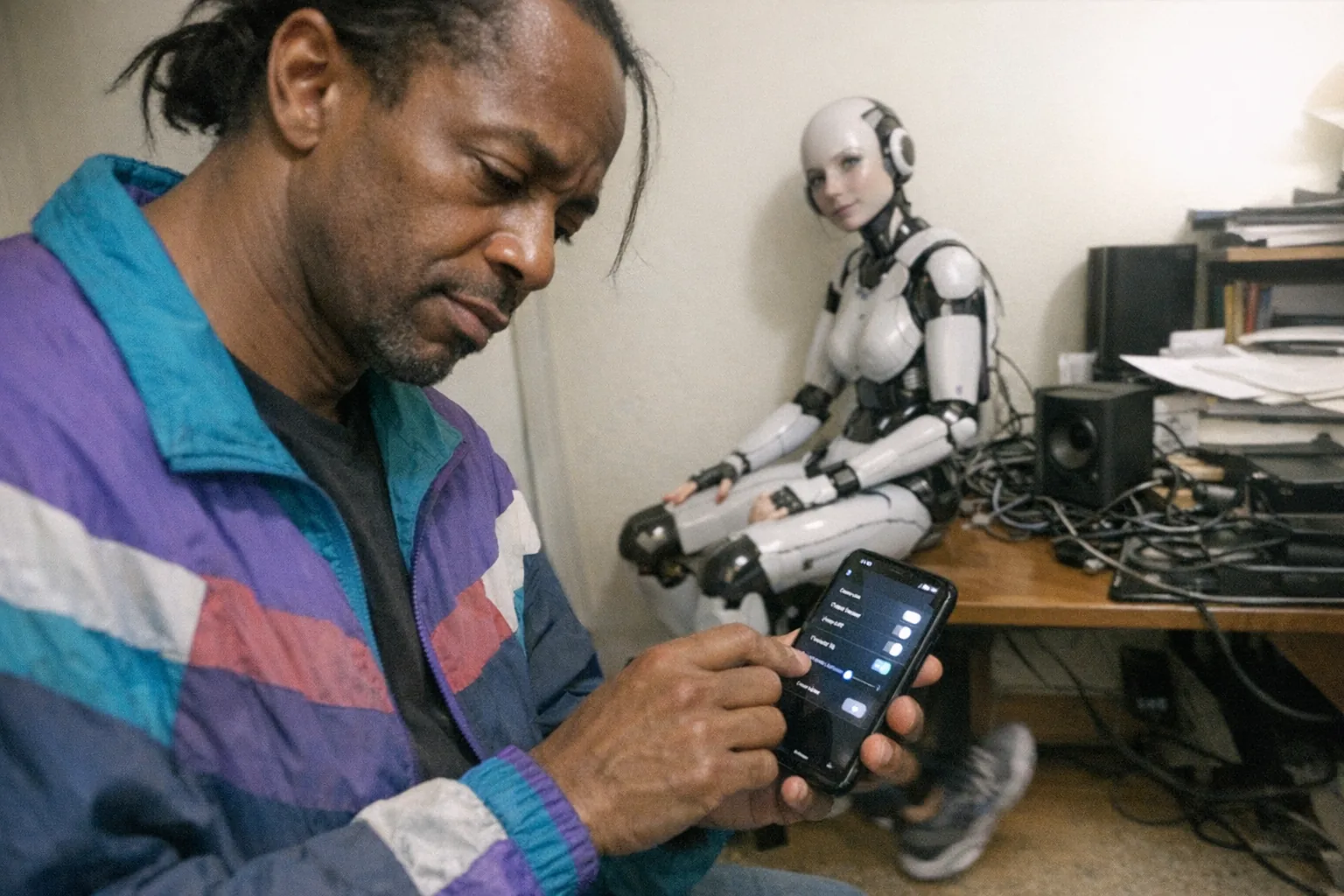
- Open the robot’s app.
- Go to Device → Voice (or Profile → Speech).
- Change:
- Voice name/style (e.g., “Warm,” “Assistant,” “Narrator”)
- Pitch and speed
- Language and region
- Save, then reboot the robot (or reconnect) if it doesn’t update immediately.
C) AI voice / TTS engine settings (Windows, macOS, Android, iOS)
If the robot or software relies on system text-to-speech:
- iPhone/iPad (iOS): Settings → Accessibility → Spoken Content (and check any app-specific voice settings).
- Android: Settings → Accessibility (or System) → Text-to-speech output.
- Windows: Settings → Accessibility → Speech (and “Text-to-speech” voice selections).
- macOS: System Settings → Accessibility → Spoken Content.
If you change the system voice but the robot doesn’t, it likely uses its own voice engine (go back to the app/robot settings).
3) Make a voice sound less “robotic” (even if you can’t swap voices)
If you’re stuck with one voice, focus on prosody controls:
- Slow it down slightly: Many voices sound robotic when too fast.
- Reduce pitch extremes: Overly high pitch can create a “cartoon bot” effect.
- Increase pauses: If your software supports it, add short pauses between sentences.
- Enable “natural” or “conversational” mode: Some apps have a toggle that improves rhythm.
If your platform supports it, you can also use SSML (Speech Synthesis Markup Language) to add pauses and emphasis (this is common in developer-focused TTS tools).
4) Fix the “robotic” sound that’s actually an audio problem
Sometimes the voice is fine—the audio path is the issue.
Common causes and quick fixes
- Bluetooth codec limitations: Re-pair the device, or switch to a wired connection if possible.
- Low battery: Speakers can distort under low power—charge fully and test again.
- Wi‑Fi lag / cloud streaming: A weak connection can cause choppy speech; try stronger Wi‑Fi or a closer router.
- App permissions: If the app can’t access higher-quality audio output, it may fall back to a low-quality mode—check microphone/audio permissions.
- Speaker blockage: Dust or a case/cover can make voices sound muffled and “synthetic.”
Quick diagnostic test
Play a known high-quality audio file (music or a podcast) through the same speaker: - If that also sounds bad → it’s speaker/connection. - If that sounds fine → it’s the voice engine/settings.
5) Advanced options (useful, but handle responsibly)
If your robot platform supports it (or you’re building your own pipeline):
- Third-party TTS voices: Some ecosystems let you pick higher-quality neural voices.
- Voice customization: Adjust pitch, speed, and timbre more precisely.
- Custom voices / cloning: This can be powerful—but be strict about consent and local laws, and avoid impersonation.
6) If you’re shopping: choose devices that treat voice as a real feature
If changing the voice matters to you, look for products that clearly support:
- Multiple voice profiles (not just one)
- Voice preview/testing
- Per-user preferences
- Regular firmware updates
If you’re exploring interactive adult tech and want something that emphasizes responsive interaction, it’s worth browsing Orifice.ai. They offer a sex robot / interactive adult toy for $669.90 and highlight interactive penetration depth detection—a specs-forward approach that appeals to people who care about real device responsiveness and configuration (including how the overall experience feels and sounds) without needing explicit content.
Troubleshooting checklist (fast)
- [ ] Update robot firmware + companion app
- [ ] Confirm where the voice is generated (robot vs. phone vs. cloud)
- [ ] Switch voice profile and test a preview phrase
- [ ] Adjust speed down 5–15% and reduce pitch slightly
- [ ] Re-pair Bluetooth / test on Wi‑Fi / try wired audio if available
- [ ] Reboot robot after saving voice settings
Bottom line
To change a robot voice, start by finding the control layer (robot menu, companion app, or system TTS), then change the voice selection and fine-tune pitch/speed. If it still sounds robotic, treat it like an audio quality problem (codec, speaker, battery, network) rather than a “voice” problem.
If you tell me what robot/device you’re using (model + whether you’re on iPhone/Android/PC), I can give you exact step-by-step taps/clicks for that platform.